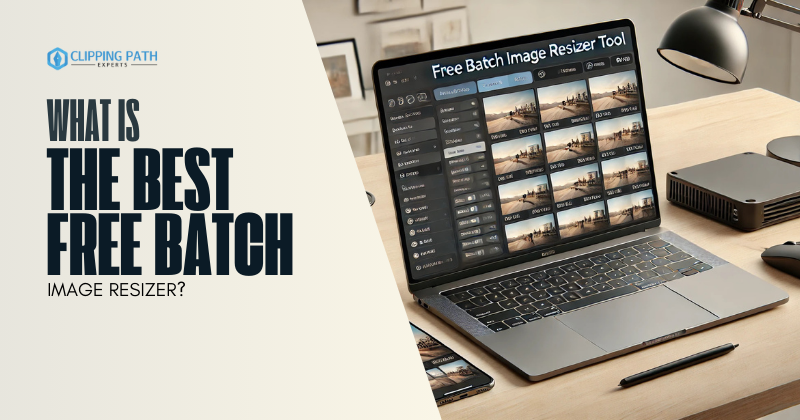
When you have Batch images, resizing them one by one is a chore, especially when preparing photos for social media, websites, or print. Whether you’re a blogger, photographer, or small business owner, finding the best free batch image resizer can save hours of manual work. In this guide, we’ll compare the top free tools, their unique features, and hidden limitations—plus workflows tailored to different needs.
What Makes the Best Free Batch Image Resizer?
The ideal tool should:
- Handle large batches (100+ images).
- Maintain quality with minimal compression.
- Offer customizable dimensions (pixels, percentages, or print sizes).
- Include extra features like renaming, format conversion, or watermarking.
Top 7 Best Free Batch Image Resizers (2024)
1. FastStone Photo Resizer
- Best For: Windows users needing speed and simplicity.
- Key Features:
- Resize, rename, and convert formats (JPEG, PNG, TIFF).
- Add watermarks and adjust compression.
- Preset profiles for social media (Instagram, Facebook).
- Limitation: No macOS version.
2. GIMP + BIMP Plugin
- Best For: Advanced users who want customization.
- Key Features:
- Batch resize, rotate, and apply filters via plugins.
- Open-source and ad-free.
- Limitation: Steeper learning curve.
3. BulkResizePhotos
- Best For: Quick browser-based resizing.
- Key Features:
- Drag-and-drop interface.
- Resize by pixels, percentages, or print sizes (e.g., 4×6 inches).
- No software download.
- Limitation: Max 50 images per batch (free version).
4. IrfanView
- Best For: Lightweight Windows tool with plugins.
- Key Features:
- Batch resize, sharpen, and add text.
- Supports 100+ formats, including RAW.
- Limitation: Outdated interface.
5. XnConvert
- Best For: Cross-platform power users.
- Key Features:
- Resize, watermark, and apply metadata.
- Advanced scripting for custom workflows.
- Limitation: Requires initial setup.
6. PhotoScape X (Free Version)
- Best For: macOS and Windows users wanting a visual interface.
- Key Features:
- Batch resize with real-time previews.
- Collage and GIF creation tools.
- Limitation: Watermarked outputs in the free tier.
7. ImageMagick
- Best For: Developers and command-line enthusiasts.
- Key Features:
- Script-based resizing for unlimited customization.
- Integrates with Python, PHP, and other languages.
- Limitation: No GUI—requires coding knowledge.
Unique Workflows for Different Users
1. Social Media Managers
- Tool: BulkResizePhotos.
- Workflow: Resize 50+ images to Instagram’s 1080px width, then compress for faster uploads.
2. Photographers
- Tool: XnConvert.
- Workflow: Resize RAW files to 2048px, add copyright watermarks, and convert to JPEG.
3. Bloggers
- Tool: FastStone Photo Resizer.
- Workflow: Batch-resize images to 1200px, rename files as “PostTitle_001.jpg,” and optimize for SEO.
Hidden Limitations to Watch For
- Quality Loss: Tools like BulkResizePhotos compress files aggressively. Use XnConvert or GIMP for lossless resizing.
- Format Support: Free tools often exclude RAW formats (CR2, NEF)—except XnConvert.
- Ads/Malware: Browser-based tools may include ads or trackers. Stick to open-source options like GIMP.
FAQs: What is the Best Free Batch Image Resizer?
1. Can I batch resize images without losing quality?
Yes! Use XnConvert or GIMP with compression set to 90-100%.
2. What’s the best free batch resizer for Mac?
XnConvert (cross-platform) or PhotoScape X (simpler interface).
3. How do I resize 500+ images at once?
Use FastStone Photo Resizer (Windows) or ImageMagick (command-line).
4. Are online batch resizers safe?
Avoid uploading sensitive photos. Use offline tools like GIMP for privacy.
5. Can I add watermarks while resizing?
Yes! XnConvert and FastStone support batch watermarking.
6. What’s the fastest tool for small batches?
BulkResizePhotos (online) or IrfanView (Windows).
Conclusion
The ideal tool hinges on your workflow and priorities. Windows users craving speed and simplicity should prioritize FastStone Photo Resizer, offering intuitive batch processing and preset templates for rapid resizing. Advanced users needing granular control over formats, filters, or metadata should explore GIMP with BIMP plugin or XnConvert—both powerhouses for scripting, watermarking, and pixel-perfect adjustments. For quick, no-fuss edits, BulkResizePhotos delivers browser-based convenience, instantly shrinking images without software downloads.
Pro Tip: Experiment with 2-3 tools on a test batch to assess speed, output quality, and compatibility with your workflow. The right resizer not only saves hours but ensures your images remain crisp, professional, and optimized for any platform. Invest a few minutes now to unlock long-term efficiency! to find your fit. With the right resizer, you’ll save hours and keep your visuals looking sharp.