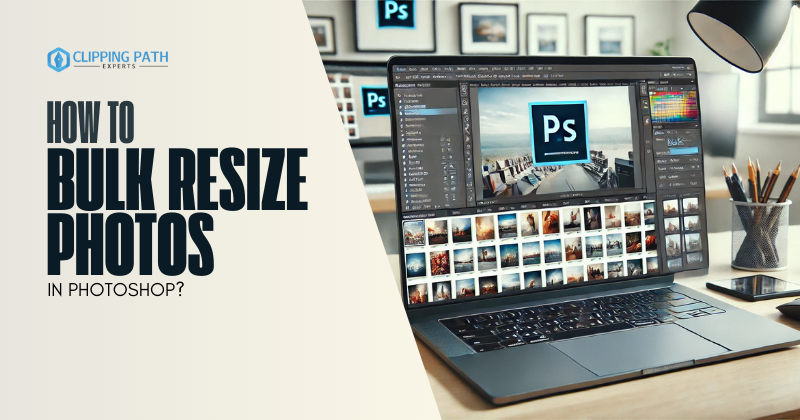
Batch resizing photos is a part of Batch photo Editing and is a critical skill for photographers, designers, and content creators who need to adapt images for websites, social media, or print. While Photoshop isn’t primarily known for batch workflows, its robust tools like Actions, Image Processor, and Scripts make it a powerhouse for bulk resizing. In this guide, you’ll learn how to bulk resize photos in Photoshop with precision, tackle common challenges, and discover pro tips to optimize your workflow.
Why Use Photoshop for Bulk Resizing?
Photoshop offers unmatched control over image quality and customization, making it ideal for:
- High-volume projects: Resize hundreds of product images or event photos.
- Custom presets: Save resizing settings for repeat use.
- Non-destructive editing: Use Smart Objects to preserve original quality.
While tools like Lightroom or Canva handle basic batch tasks, Photoshop shines for complex workflows requiring exact dimensions, metadata retention, or layered adjustments.
Method 1: Batch Resize Using Photoshop Actions
Actions automate repetitive tasks by recording your steps. Here’s how to resize photos in bulk:
- Create a New Action:
- Open a photo and go to Window > Actions.
- Click the Create New Action button (🗒️) and name it (e.g., “Resize to 2000px”).
- Record the Resizing Steps:
- Go to Image > Image Size.
- Set dimensions (e.g., 2000px width) and ensure Resample is checked.
- Choose an interpolation method (e.g., Bicubic Sharper for downsizing).
- Click OK, then stop recording the action.
- Run the Action on Multiple Files:
- Go to File > Automate > Batch.
- Under Play, select your action.
- Set Source to the folder of images and Destination to a new folder.
- Click OK to resize all photos.
Pro Tip: Save actions as an .atn file to reuse across projects.
Method 2: Batch Resize with Image Processor
Photoshop’s Image Processor is a hidden gem for quick resizing and format conversion:
Prepare Your Files:
- Place all photos in a single folder (e.g., “Raw_Images”).
Open Image Processor:
- Go to File > Scripts > Image Processor.
Configure Settings:
- Select Source Folder: Choose your “Raw_Images” folder.
- Select Destination: Create a new folder (e.g., “Resized_Images”).
- File Type: Choose JPEG, PNG, or TIFF.
- Resize to Fit: Enter maximum width/height (e.g., 1500px).
- Run to process all files.
Advantage: Image Processor retains metadata (EXIF, copyright) by default.
Method 3: Advanced Scripting for Custom Workflows
For developers or automation enthusiasts, Photoshop’s Scripting support unlocks next-level batch resizing:
- Write a Simple JavaScript:

Run the Script:
- Save the file as .jsx and go to File > Scripts > Browse.
- Select your script to resize all images in the chosen folder.
Use Case: Resize and watermark images simultaneously by expanding the script.
Pro Tips for Bulk Resize Photos in Photoshop
- Preserve Aspect Ratio:
- Always check Constrain Proportions in Image Size to avoid distortion.
- Choose the Right Interpolation Method:
- Bicubic Sharper: Best for downsizing.
- Bicubic Smoother: Ideal for upscaling.
- Batch Rename Files:
- Use Adobe Bridge (File > Batch Rename) to rename resized images (e.g., “Product_001.jpg”).
- Leverage Smart Objects:
- Convert layers to Smart Objects (Layer > Smart Objects > Convert) for non-destructive resizing.
Troubleshooting Common Issues
| Problem | Solution |
| Blurry Images | Avoid upscaling beyond original resolution; use AI tools like Topaz Gigapixel for exceptions. |
| Inconsistent Sizing | Ensure all source images have similar aspect ratios before resizing. |
| Metadata Loss | Use Image Processor instead of Save for Web to retain EXIF data. |
Beyond Photoshop: Alternative Tools
While Photoshop excels, these tools complement bulk resizing:
- Adobe Lightroom: Sync resizing settings across RAW files.
- XnConvert: Free tool for basic batch resizing and watermarking.
- ImageMagick: Command-line tool for developers.
FAQs: How to Bulk Resize Photos in Photoshop?
1. Can I resize photos without losing quality?
Yes! Use Smart Objects or save in lossless formats (TIFF/PNG).
2. How do I resize images to exact print dimensions (e.g., 8×10 inches)?
In Image Size, switch units to inches and set resolution to 300 PPI.
3. Can I batch resize and watermark in one step?
Yes! Record an action that adds a watermark layer after resizing.
4. Why does Photoshop crash during batch processing?
Split large batches into smaller groups (50-100 images) to reduce memory load.
5. How to handle mixed file formats (JPEG, PNG, PSD)?
Use Image Processor—it supports multiple formats in one batch.
Conclusion
Mastering how to bulk resize photos in Photoshop transforms tedious tasks into efficient workflows, whether you’re prepping a client gallery, optimizing product images, or resizing social media content. By leveraging Actions, Image Processor, and Scripts, you can maintain quality, save hours, and focus on creativity.
Next Steps:
- Experiment with Actions for your most common resizing tasks.
- Try scripting for custom automation.
- Combine Photoshop with Lightroom for RAW file workflows.