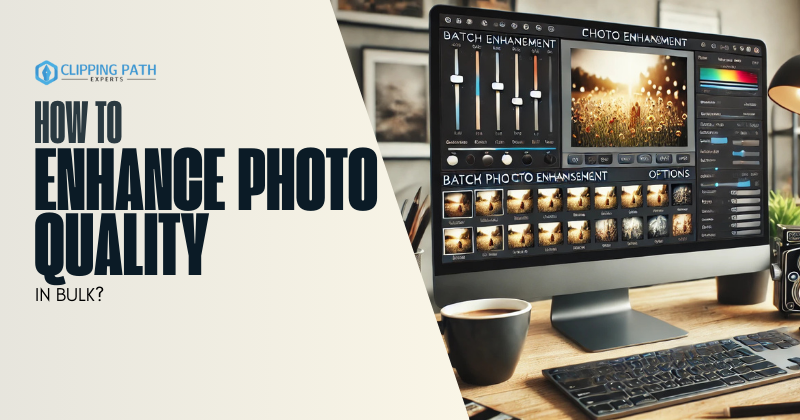
Enhancing the quality of Bulk photos manually is an overwhelming task, whether you’re a photographer, marketer, or content creator. From noise reduction and sharpening to color correction and AI upscaling, enhancing photo quality in bulk requires the right tools and workflows to ensure consistency and efficiency.
This guide dives into advanced techniques, lesser-known software, and AI-powered solutions to help you understand how to enhance photo quality in bulk and transform large batches of images with minimal effort.
What Does “Enhancing Photo Quality in Bulk” Mean?
Bulk photo enhancement involves applying uniform adjustments across multiple images to improve:
- Clarity: Reducing noise and sharpening details.
- Color Accuracy: Correcting white balance, saturation, and exposure.
- Resolution: Upscaling low-res images without losing quality.
- Consistency: Ensuring a cohesive look for portfolios, social media, or product galleries.
Top Tools to Enhance Photo Quality in Bulk
1. Adobe Lightroom Classic
- Unique Feature: Sync adjustments across thousands of photos with presets.
- Workflow:
- Import photos into a Collection.
- Edit one photo (noise reduction, sharpening, color grading).
- Sync Settings to all selected images.
- Best For: Photographers managing RAW files.
2. Topaz Labs Suite (Gigapixel AI, DeNoise AI)
- Unique Feature: AI-powered upscaling and noise reduction.
- Workflow:
- Batch-process images in Gigapixel AI to upscale 4x.
- Run through DeNoise AI to remove grain.
- Best For: Restoring old photos or enhancing low-res images.
3. DxO PureRAW
- Unique Feature: AI-driven RAW file optimization with DeepPRIME noise reduction.
- Workflow:
- Load RAW files into PureRAW.
- Batch-export enhanced DNG files to Lightroom or Photoshop.
- Best For: High-volume RAW processing.
4. Skylum Luminar Neo (Batch AI Enhance)
- Unique Feature: Enhance AI tool for automatic detail recovery and color correction.
- Workflow:
- Create a Batch Edit Template with adjustments.
- Apply to all photos in a folder.
- Best For: Social media managers and bloggers.
5. XnConvert
- Unique Feature: Free, cross-platform tool for basic bulk adjustments.
- Workflow:
- Add filters (sharpen, denoise).
- Adjust exposure and contrast.
- Batch-export enhanced images.
- Best For: Quick fixes without AI.
6. Capture One (Styles & Presets)
- Unique Feature: Color Balance Tool for precise batch color grading.
- Workflow:
- Apply a Style (e.g., “Film Grain”) to a hero photo.
- Sync across all selected images.
- Best For: Commercial photographers needing color consistency.
Step-by-Step: How to Enhance Photo Quality in Bulk
Method 1: AI-Powered Enhancement (Topaz Labs)
- Install Gigapixel AI and DeNoise AI.
- Batch Process in Gigapixel AI:
- Drag-and-drop images.
- Set scaling factor (2x, 4x) and enable Suppress Noise.
- Click Export All to save upscaled files.
- Batch Denoise:
- Open the upscaled files in DeNoise AI.
- Select Auto Mode and export.
Method 2: Lightroom Classic Presets
- Create a Preset:
- Edit a photo with adjustments (e.g., +20 Sharpness, -15 Noise).
- Go to Develop > New Preset and name it (e.g., “Basic Enhance”).
- Batch Apply:
- Select all photos in a collection.
- Click the preset to apply enhancements.
Method 3: Luminar Neo Batch AI Enhance
- Create a Template:
- Open a photo and apply Enhance AI, Color Harmony, and Structure.
- Save as a Batch Edit Template.
- Batch Process:
- Go to File > Batch Edit.
- Select the template and input/output folders.
- Click Start to enhance all photos.
Unique Workflows for Specific Needs
1. Restoring Old Photos
- Tools: Topaz Labs + Photoshop Actions.
- Workflow:
- Upscale in Gigapixel AI.
- Remove scratches and stains using a Photoshop Action (recorded healing brush steps).
- Batch-apply the action via File > Automate > Batch.
2. E-Commerce Product Photos
- Tools: Capture One + ColorChecker Passport.
- Workflow:
- Use ColorChecker to create a custom color profile.
- Apply profile and sharpening to all product shots.
3. Social Media Content
- Tools: Canva + Luminar Neo.
- Workflow:
- Batch-enhance photos in Luminar Neo.
- Import into Canva for Magic Resize and branding.
Pro Tips for Bulk Enhancements
- Preserve Originals: Always work on copies to avoid irreversible changes.
- Use Smart Previews: In Lightroom, edit using smaller proxy files for speed.
- Leverage AI Wisely: Avoid over-processing—AI tools can introduce artifacts.
- Calibrate Monitors: Ensure color accuracy across devices.
Common Challenges & Fixes
| Challenge | Solution |
| Inconsistent Results | Group photos by lighting conditions first. |
| Slow Processing | Use GPU acceleration (enable in app settings). |
| Artifacts from AI Tools | Reduce the AI effect strength (e.g., Gigapixel’s “Moderate” mode). |
FAQs: How to Enhance Photo Quality in Bulk?
1. Can I enhance photos in bulk for free?
Yes! Use XnConvert for basic adjustments or RawTherapee (open-source) for RAW processing.
2. How do I avoid quality loss when upscaling?
Use Topaz Gigapixel AI or Adobe Super Resolution (in Lightroom/Camera Raw).
3. What’s the best tool for noise reduction in bulk?
DxO PureRAW (for RAW files) or Topaz DeNoise AI (JPEG/PNG).
4. Can I batch-enhance photos on a phone?
Yes! Use Lightroom Mobile (presets) or Snapseed (batch apply filters).
5. How to handle mixed file formats (RAW + JPEG)?
Use Adobe Bridge to filter files by type, then process in compatible tools.
6. Is cloud-based bulk enhancement possible?
Yes—Adobe Lightroom Web and Pixelmator Pro (macOS) offer cloud batch workflows.
Conclusion
Learning how to enhance photo quality in bulk empowers you to tackle large projects efficiently, whether you’re reviving old family photos, optimizing product catalogs, or prepping social media content. By leveraging AI tools like Topaz Labs, presets in Lightroom, or scripting with Python, you can achieve professional results at scale.