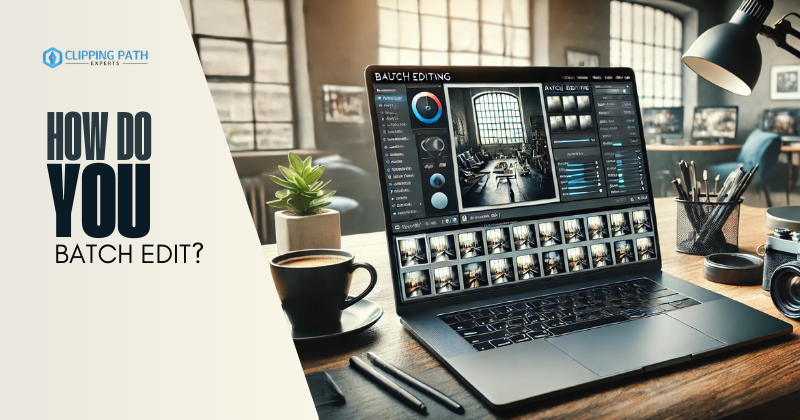
Batch editing is a game-changer for photographers, designers, and content creators who need to process large volumes of images quickly. If you’ve ever wondered, How do you batch edit?, this guide is for you. Learn universal methods, software-specific workflows, and pro tips to streamline your editing process. Whether you’re using Adobe tools, free software, or mobile apps, this guide covers everything you need to know.
What Is Batch Editing?
Batch editing allows you to:
- Apply uniform adjustments (e.g., exposure, contrast, color correction).
- Resize or convert formats for web, print, or social media.
- Add watermarks or metadata to multiple files.
How Do You Batch Edit Using Different Software and Tools?
1. Using Adobe Lightroom
- Sync Settings: Edit one photo, then sync adjustments to others.
- Presets: Apply saved presets to batches.
- Export in Bulk: Resize and convert formats during export.
2. Using Adobe Photoshop
- Actions: Record and replay edits across photos (File > Automate > Batch).
- Image Processor: Bulk-resize or convert file formats (File > Scripts > Image Processor).
3. Using Free/Open-Source Tools
- GIMP: Use the Batch Processing plugin for basic tasks.
- Darktable: Sync edits across photos in the Lighttable view.
4. Online Tools
- Canva: Apply filters or adjust brightness/contrast to multiple images.
- Pixlr X: Batch-edit up to 20 photos with preset templates.
5. Mobile Apps
- Adobe Lightroom Mobile: Sync edits across selected photos.
- Snapseed: Limited batch editing via selective adjustments.
Tips for Effective Batch Editing
- Use Presets: Save frequently used adjustments for one-click application.
- Organize Files First: Delete rejects and group similar photos.
- Test on a Sample: Run edits on 5-10 photos to check results.
- Backup Originals: Avoid irreversible changes to original files.
Challenges & Solutions
| Challenge | Solution |
| Over-editing | Stick to basic adjustments (exposure, white balance) for batches. |
| Slow software performance | Use smaller batches or optimize software settings (e.g., GPU acceleration). |
| Inconsistent results | Group photos with similar lighting/conditions before editing. |
Extensive FAQs About How Do You Batch Edit?
1. What software is best for batch editing?
- Professional: Adobe Lightroom (presets, sync tools).
- Free: GIMP, Darktable.
- Quick Fixes: Canva, Pixlr.
2. Can I batch-edit for free?
Yes! Use GIMP (desktop) or Canva (online) for basic tasks like resizing or filters.
3. How do I maintain image quality during batch edits?
- Use lossless formats (TIFF, PNG) when possible.
- Avoid excessive compression (e.g., JPEG quality below 80%).
4. Can I batch-edit RAW files?
Yes, in software like Lightroom or Capture One. Avoid tools like Canva, which don’t support RAW.
5. How do I batch-resize photos?
- Lightroom: Use export settings with fixed dimensions.
- Photoshop: Use Image Processor (File > Scripts > Image Processor).
- GIMP: Use the Batch Processing plugin.
6. Is batch editing possible on mobile?
Limited. Lightroom Mobile allows batch presets and syncs, but advanced tools are missing.
7. How do I automate repetitive tasks?
Use Photoshop Actions or Lightroom Presets to record and replay edits.
8. Why do some edits look different across photos?
Variations in lighting, exposure, or color temperature affect adjustments. Group similar photos first.
9. Can I add watermarks in bulk?
Yes! Use Lightroom’s Export settings or Photoshop Actions to apply watermarks during export.
10. How do I batch edit metadata (e.g., copyright info)?
- Lightroom: Use the Metadata Panel to apply info to selected photos.
- Photoshop: Use Bridge or ExifTool for bulk metadata edits.
11. What’s the fastest way to batch edit 500+ photos?
Use Lightroom or Capture One with presets and GPU acceleration enabled.
12. Can I batch edit videos?
Yes, with tools like Adobe Premiere Pro (presets) or DaVinci Resolve (batch color grading).
13. How do I fix batch edits if I make a mistake?
- Lightroom: Use the History Panel to revert changes.
- Photoshop: Reprocess the batch with corrected settings.
14. Are there AI tools for batch editing?
Yes! Tools like Skylum Luminar or Adobe Sensei auto-adjust exposure, color, and noise.
15. Can I batch-edit photos for Instagram?
Yes. Resize to 1080px width, apply filters, and export as JPEGs using Lightroom or Canva.
Conclusion
So, how do you batch edit? By leveraging presets, sync tools, and automation across software like Lightroom, Photoshop, or free alternatives. Whether you’re resizing, color-correcting, or applying filters, batch editing saves time and ensures consistency.
Next Steps:
- Experiment with free tools like GIMP or Canva for basic batch edits.
- Explore Lightroom Presets or Photoshop Actions to automate repetitive tasks.