Editing photos one by one is tedious, especially when working with hundreds of images from events, vacations, or product shoots. Whether you’re a professional photographer or a hobbyist, knowing how to edit a batch of photos at once can save hours of work.
This guide covers universal methods for batch editing across popular software, along with tips and tools to streamline your workflow.
What Is Batch Editing?
Batch editing refers to applying the same adjustments (e.g., exposure, color correction, filters) to multiple photos simultaneously. This is ideal for:
- Consistency: Ensure all photos in a series share the same style.
- Efficiency: Edit hundreds of photos in minutes.
- Time-Saving: Avoid repetitive manual adjustments.
Batch Editing Methods Across Popular Software
1. Adobe Lightroom Classic/CC
- Sync Settings: Edit one photo, then sync adjustments (exposure, presets) to a batch.
- Presets: Apply saved presets to multiple photos.
- Auto Sync: Enable Auto Sync to edit all selected photos in real time.
2. Adobe Photoshop
- Actions: Record a sequence of edits (e.g., resizing, color correction) and apply it to a folder via File > Automate > Batch.
- Image Processor: Bulk-resize or convert file formats (File > Scripts > Image Processor).
3. Capture One
- Adjustment Clipboard: Copy adjustments from one photo and paste to others.
- Styles: Apply preset styles to batches.
4. Free/Open-Source Tools
- GIMP: Use the Batch Processing plugin for basic tasks like resizing or filters.
- Darktable: Sync edits across photos using its Lighttable view.
5. Online Tools
- Canva: Apply filters or adjust brightness/contrast to multiple images in bulk.
- Pixlr: Batch-edit using preset templates (limited to 10-20 images for free).
General Steps to Edit a Batch of Photos
Step 1: Organize Your Photos
- Group photos into a single folder.
- Use consistent naming (e.g., “Event_001.jpg”, “Event_002.jpg”).
Step 2: Choose Your Software
Pick a tool based on your needs:
- Professional: Lightroom, Capture One.
- Free/Open-Source: GIMP, Darktable.
- Quick Fixes: Canva, Pixlr.
Step 3: Apply Batch Edits
- Select Photos: Import or open multiple files.
- Edit One Photo: Adjust exposure, apply a filter, or correct colors.
- Sync Edits: Use tools like Lightroom’s Sync Settings or Photoshop’s Actions to replicate edits.
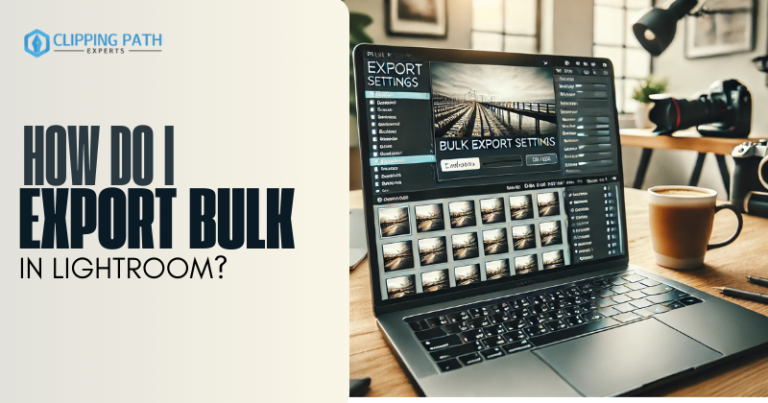
- Export: Save all edited photos in your desired format (JPEG, PNG, etc.).
Tips for Efficient Edit a Batch of Photos at Once
- Use Presets/Styles
Save frequently used adjustments as presets for one-click application. - Test on a Sample Batch First
Run edits on 5-10 photos to ensure settings work before applying to hundreds. - Organize Before Editing
Delete rejects and group similar photos (e.g., portraits, landscapes) for tailored adjustments. - Check Consistency
Review a few edited photos to ensure no over/underexposure or color mismatches.
What are the Common Challenges & Solutions of Edit a Batch of Photos at Once
1. Over-Editing
- Fix: Stick to basic adjustments (exposure, white balance) for batches. Save creative edits (e.g., filters) for individual photos.
2. Software Limitations
- Fix: Use specialized tools for complex tasks (e.g., Photoshop Actions for resizing, Lightroom for presets).
3. Time-Consuming Exports
- Fix: Reduce file resolution for web use or enable GPU acceleration in software settings.
FAQs About Edit a Batch of Photos at Once
1. Can I batch-edit photos for free?
Yes! Use GIMP, Darktable, or Canva (limited features).
2. How do I maintain image quality during batch edits?
Avoid excessive compression and use lossless formats (TIFF, PNG) when possible.
3. Can I batch-edit RAW files?
Yes, in software like Lightroom or Capture One.
4. What’s the fastest way to resize 100+ photos?
Use Photoshop’s Image Processor or Lightroom’s Export settings with preset dimensions.
5. How do I batch-edit on a phone?
Use apps like Adobe Lightroom Mobile or Snapseed (limited to smaller batches).
Conclusion
Batch editing is a game-changer for anyone working with large volumes of photos. By leveraging presets, sync tools, and automation features in software like Lightroom, Photoshop, or even free alternatives like GIMP, you can achieve professional results in minutes instead of hours.
Next Steps:
- Experiment with presets in your preferred software.
- Try free tools like Darktable or Canva for basic batch edits.