Image-heavy ecommerce stores are losing customers they never even know about. Not to better prices. Not to stronger competitors. To slow load times caused by unoptimized product images. Research from Google shows that as page load time increases from 1 to 3 seconds, bounce probability rises by 32%. From 1 to 5 seconds, it jumps to 90%. The single heaviest element on almost every product page? Images.
In 2026, this problem carries more weight than ever. Google now scores and ranks your store through Core Web Vitals — and Largest Contentful Paint, which is almost always a product image, must load under 2.5 seconds for a “good” rating. Google’s mobile-first indexing means the mobile version of your store is what determines your rankings — and mobile visitors on constrained networks feel every unoptimized kilobyte. AI-powered search is also raising the bar: faster, better-structured pages are being surfaced more aggressively in AI Overviews and visual search results. Slow, heavy images hold you back on every front.
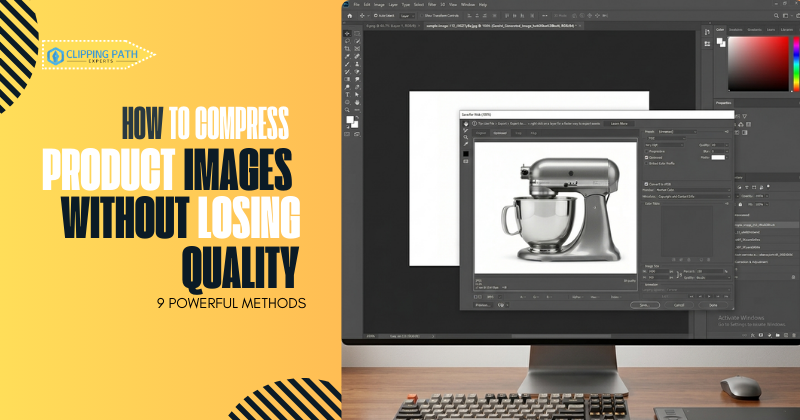
The answer is knowing how to compress product images without losing quality — reducing file sizes by 60–80% while keeping the visual clarity your customers need to trust your products and complete a purchase.
To compress product images without losing quality, resize them properly, use next-gen formats like WebP, apply 70–85% lossy compression, use lossless compression for detailed images, and leverage professional image compression tools for ecommerce. This reduces image size without losing quality while improving website speed.
This guide covers 9 powerful, proven methods to do exactly that — from format conversion and smart compression settings to platform-specific tools, CDN delivery, and automation workflows for stores of every size.
Why You Must Compress Product Images in Ecommerce
Impact on Page Speed
Images account for 60–75% of a typical ecommerce page’s total file weight. An unoptimized raw camera file can be 8–15 MB. On a category page with 24 products, that’s potentially 200+ MB of data a visitor has to download before they can interact with your store. The result is an ecommerce image loading speed problem that compounds across every page, every session, every visitor. The starting point to fix it is understanding how to compress product images without losing quality at scale.
Effect on Conversion Rates
Walmart’s research showed every 1-second improvement in load time correlated with a 2% increase in conversions. Amazon found a 1% sales drop for every 100ms of delay. A/B testing studies from CRO agencies consistently show conversion lifts of 7–20% when load time improves by 1–2 seconds. Learning how to compress product images without losing quality is one of the fastest ways to capture those conversion gains without changing a single line of copy or redesigning a single page.
Core Web Vitals and SEO
Google’s Largest Contentful Paint (LCP) benchmark is under 2.5 seconds for a “good” score — and the LCP element on almost every product page is an image. Stores with large, uncompressed images routinely fail this benchmark and pay for it in rankings. Compressing images improves LCP, which improves Core Web Vitals scores, which improves Google rankings. That is why how to compress product images without losing quality is fundamentally an SEO question, not just a technical one.
Mobile Performance
Over 60% of global ecommerce traffic is mobile. Mobile devices run slower processors on constrained networks. An image that loads acceptably on desktop fiber can take 4–5 seconds on a mid-range phone on 4G. Every kilobyte matters. Mobile users are also the visitors most likely to abandon — and the ones Google prioritizes through mobile-first indexing. Knowing how to compress product images without losing quality directly determines how your store performs for this majority of your audience.
Crawl Budget Impact
For large ecommerce stores with thousands of product pages, crawl budget matters. When Googlebot visits your site, slow-loading, heavy pages consume more crawl budget — meaning Google crawls fewer pages per session. Compressed, lightweight product pages get crawled more frequently and indexed more reliably.
Understanding Lossless vs Lossy Compression
Before applying any compression, understanding the two fundamental methods ensures you make the right choice for each image type.
What Is Lossless Compression?
Lossless compression reduces file size by reorganizing image data more efficiently — without removing any information. The output is bit-perfect: every pixel is identical to the original. PNG and lossless WebP use this method.
When to use it: Images with sharp text overlays, logos, graphics with flat colors, or high-detail luxury product photos where even minor visual degradation is unacceptable.
Limitation: File size reductions are modest — typically 10–30% compared to the original, not the 60–80% achievable with lossy compression. Choosing between these methods is the core decision in how to compress product images without losing quality for any given image type.
What Is Lossy Compression?
Lossy compression permanently removes image data that falls below human perception thresholds. At the right quality settings, the removed data is genuinely invisible to the human eye — but file sizes drop dramatically. JPEG and lossy WebP use this method.
Ideal compression percentage: 70–85% quality for most product photography. At this range:
- Below 70%: artifacts (blockiness, color banding, edge noise) become visible
- 70–85%: visually indistinguishable from the original at standard viewing distances
- Above 85%: diminishing returns — minimal additional quality gain for significantly larger files
Lossless vs Lossy Compression — Which Is Better for Ecommerce?
For the vast majority of product photography, lossy compression at 75–82% quality is the correct choice. The file size savings (60–80%) are significant, and the quality difference is imperceptible.
Use lossless for: jewelry close-ups, fine fabric textures, luxury goods, and any image where you’ve noticed lossy artifacts appearing at your standard compression setting.
The hybrid approach that works best for large ecommerce catalogs: lossy WebP at 80% for standard product photos, lossless WebP for high-detail items, and run all images through a secondary lossless optimization pass to remove unnecessary metadata. This hybrid strategy is how to compress product images without losing quality across a diverse catalog.
9 Powerful Methods to Compress Product Images Without Losing Quality
Method 1 — Resize Before You Compress
The most overlooked step in compression is resizing. Compression on an oversized image is far less effective than compression on a correctly-sized one. A 4000×4000px raw camera file compressed to 80% quality still produces a file that’s 10× larger than it needs to be.
The rule: Never upload images larger than their largest display dimension.
| Use Case | Maximum Upload Width |
|---|---|
| Main product image (with zoom) | 1200–2048px |
| Main product image (no zoom) | 800–1000px |
| Category thumbnails | 400–600px |
| Hero / banner images | 1440–1920px |
| Cart thumbnails | 100–200px |
Always resize first, then compress. This order matters — it’s the difference between a 500 KB file and a 90 KB file at the same visual quality. Resizing is step one of how to compress product images without losing quality correctly.
Method 2 — Convert to WebP or AVIF
Format conversion is often the single biggest file size improvement available, with zero perceptible quality change.
WebP delivers 25–34% smaller files than JPEG at equivalent visual quality. It supports both lossy and lossless compression and handles transparency — replacing PNG in most use cases. It’s supported by all major browsers in 2026.
AVIF delivers up to 50% smaller files than JPEG at comparable quality. Browser support is now broad enough to serve AVIF to modern browsers with WebP and JPEG as fallbacks using the <picture> element.
<picture>
  <source type="image/avif" srcset="product.avif">
  <source type="image/webp" srcset="product.webp">
  <img src="product.jpg" alt="product description" loading="lazy">
</picture>
When to still use JPEG: When serving to legacy systems, email campaigns, or marketplace uploads (Amazon, eBay) that don’t yet accept WebP. For your own website, WebP should be your default.
Method 3 — Use Smart Lossy Compression (70–85%)
Smart lossy compression means applying the right quality percentage to the right image type — not applying a blanket setting to everything.
How to reduce image size without losing quality using quality tiers:
| Image Type | Quality Setting | Expected File Reduction |
|---|---|---|
| Standard product photo | 75–82% | 60–75% |
| High-detail (jewelry, fabric) | 82–88% | 45–60% |
| Hero / lifestyle imagery | 72–80% | 65–80% |
| Text overlay images | Lossless | 10–30% |
Use Squoosh (squoosh.app) to preview the quality/size tradeoff visually before committing to a setting. Drag the quality slider and watch the file size update in real time — it makes the 75–85% sweet spot immediately obvious. Getting this range right is the heart of how to compress product images without losing quality for photography.
Method 4 — Apply Lossless Compression for High-Detail Products
Certain product categories cannot tolerate lossy compression artifacts. For these, lossless compression is the correct approach — even at the cost of larger files.
When to use lossless:
- Jewelry — Lossy compression creates visible noise around metal edges and gemstone facets
- Textured fabrics — Weave patterns become smeared and indistinct under heavy lossy compression
- Luxury items — Where perceived quality is the primary sales driver, any artifact is unacceptable
- Technical diagrams or infographics — Sharp lines and text break down under lossy compression
For these categories, use PNG or lossless WebP, and apply a secondary optimizer like ImageOptim or PNGOUT to reduce file size without touching image data. Alternatively, use lossless WebP — it produces smaller files than PNG for the same pixel-perfect quality.
Method 5 — Use the Best Image Compressor for Ecommerce
The right compression tool for your store depends on catalog size, platform, and workflow. When evaluating tools, look for:
- Batch processing — Can it compress hundreds or thousands of images simultaneously?
- WebP conversion — Does it output modern formats, not just optimize existing JPEG/PNG?
- Adjustable quality settings — Can you set different compression levels per image type?
- Automation — Does it integrate with your CMS or trigger on upload?
- Backup preservation — Does it keep originals before replacing with compressed versions?
The best image compressor for ecommerce is not the one with the most features — it’s the one that fits your workflow without adding friction. The right tool makes how to compress product images without losing quality a repeatable process rather than a manual task.
Top tools by use case:
| Tool | Best For |
|---|---|
| Squoosh | Manual compression with visual preview |
| ShortPixel | Bulk WordPress/WooCommerce optimization |
| TinyIMG | Shopify bulk compression + SEO audit |
| Cloudinary | API-based automation for large catalogs |
| EWWW Image Optimizer | WordPress auto-compression on upload |
| WP Compress | WordPress with CDN integration |
Method 6 — Use Image Compression Tools for Ecommerce Platforms
Platform-specific tools handle compression where your products actually live.
Shopify: TinyIMG and Crush.pics are the leading Shopify apps for bulk compression. Shopify automatically converts uploaded images to WebP for supported browsers — but it doesn’t pre-compress your originals. Always compress before uploading, and use an app for retroactive optimization of existing product images.
WooCommerce / WordPress: ShortPixel, EWWW Image Optimizer, and WP Compress integrate directly with the WordPress media library. They auto-compress on upload and offer bulk retroactive optimization across existing libraries. ShortPixel’s API is particularly strong for stores with thousands of SKUs.
Bulk optimization platforms: Cloudinary and Kraken.io offer API-based bulk processing for enterprise stores. These tools can process entire product catalogs overnight, replacing originals with optimized versions while maintaining backups.
AI-powered compression tools: Tools like Cloudinary’s intelligent compression calibrate quality settings per image rather than applying a blanket percentage. A detailed jewelry photo gets a higher quality setting automatically. A simple white-background shirt gets compressed more aggressively. AI-driven optimization consistently outperforms manual blanket settings at scale.
Method 7 — Compress JPEG for Website Performance
JPEG isn’t going away. Marketplace uploads, email campaigns, legacy CMS integrations, and certain third-party platforms still require JPEG. Knowing how to compress JPEG for website use correctly remains relevant.
When JPEG is still the right format:
- Marketplace uploads (Amazon, eBay, Etsy) that don’t accept WebP
- Email campaign imagery where WebP support is inconsistent
- Legacy CMS platforms that haven’t added WebP support
Progressive JPEG: Standard JPEGs load top-to-bottom, appearing to “wipe in” as they load. Progressive JPEGs load a blurry version first and sharpen as more data arrives — giving users visual feedback faster and improving perceived performance. Export as progressive JPEG in Photoshop, GIMP, or any professional editing tool.
Optimal JPEG compression settings: 75–80% quality for standard product photos. Strip all EXIF metadata (camera model, GPS coordinates, timestamps) — this alone can reduce file size by 15–20% with zero visual impact. Tools like ExifTool or Squoosh handle this automatically. For JPEG-dependent workflows, this is how to compress product images without losing quality using the legacy format correctly.
Method 8 — Implement Lazy Loading
Lazy loading doesn’t compress images — but it dramatically improves ecommerce image loading speed by deferring images that aren’t yet visible from loading until they’re needed. On a 48-product category page, this can cut initial load time in half.
<!-- Correct: apply to below-the-fold images -->
<img src="product.webp" alt="product description" loading="lazy">

<!-- Critical: NEVER apply to your hero or main product image -->
<img src="hero.webp" alt="hero description" loading="eager" fetchpriority="high">
The critical rule: Never apply loading="lazy" to above-the-fold images — your hero image, main product image, or first visible product row. These must load immediately. Lazy loading your LCP image is one of the most damaging Core Web Vitals errors in ecommerce.
Method 9 — Use a CDN for Dynamic Image Compression
A Content Delivery Network delivers images from the server closest to each visitor — cutting load times by 50–80% for international traffic. But modern image CDNs go further: they compress and transform images dynamically based on the requesting device.
What dynamic image compression via CDN means in practice:
- A mobile visitor on a 400px screen gets a 400px, 75% quality WebP image
- A retina desktop user gets a 1600px, 82% quality WebP image
- An older browser gets a JPEG fallback
- All served automatically from a single source image, from the nearest edge node
CDN options for ecommerce:
| CDN | Best For |
|---|---|
| Cloudflare | Free tier, easy WooCommerce setup |
| Fastly | Built into Shopify automatically |
| ImageKit | Purpose-built image CDN with transformations |
| Cloudinary | Full image management with AI optimization |
CDN-based dynamic compression eliminates the need to manually maintain multiple image size variants and ensures every visitor gets the optimal image for their specific device and connection.
Best Image Compression Workflow for Ecommerce Stores
Follow this step-by-step workflow for every product image before it goes live on your store:
Step 1 — Resize the image Resize to your largest required display dimension. For main product images, 1200–1500px wide covers zoom functionality and retina displays without unnecessary overhead.
Step 2 — Convert to WebP Export from your original lossless source (RAW, TIFF, or original PNG) as WebP. Never compress an already-compressed JPEG — each re-compression cycle compounds quality loss.
Step 3 — Apply 75–82% lossy compression Use Squoosh, Photoshop’s “Export As,” or ShortPixel at this quality range. Preview the result before saving. If artifacts are visible, move to 82–85%.
Step 4 — Test visually Open the compressed image at 100% zoom and compare it to the original side by side. Check edges, textures, and color transitions. If it looks identical — it is, to your customers.
Step 5 — Run a PageSpeed test Upload to a test environment and run Google PageSpeed Insights. Verify LCP is under 2.5 seconds. If images are still flagged as oversized, compress further or verify dimensions are correct.
Step 6 — Deploy via CDN Ensure images are served through your CDN — not directly from your origin server. Verify WebP is being served to modern browsers and JPEG to legacy ones. Check cache headers are set for at least 30 days. Following this workflow consistently is how to compress product images without losing quality at an operational level across your entire catalog.
Common Mistakes When You Compress Product Images
Over-compressing. Quality settings below 70% introduce visible artifacts — blockiness around edges, color banding, general noise. Over-compressed images make products look cheap and erode purchase trust. The quality savings below 70% are not worth the conversion impact.
Ignoring retina displays. Modern smartphones render at 2× pixel density. A 400px display slot on a retina phone needs an 800px source image to look sharp. Without srcset, retina visitors see upscaled, blurry images — which is worse than a large, slow-loading image. Implement responsive images properly.
Uploading full-resolution RAW exports. A raw DSLR export can be 10–20 MB. Even after lossy compression, starting from this file size wastes compression potential. Always resize to display dimensions first.
Re-compressing already-compressed JPEGs. Each lossy compression cycle degrades quality. Starting from a 70% quality JPEG and compressing again at 80% doesn’t produce an 80% quality image — it produces a compounded-loss image. Always start from the original lossless source.
Skipping alt text. Compression optimizes your image for speed. Alt text optimizes it for SEO and accessibility. Both are required. A beautifully compressed image with no alt text is invisible to Google and inaccessible to screen reader users.
Not testing mobile. Desktop PageSpeed scores don’t reflect the mobile experience. A mid-range Android device on 4G exposes problems that desktop Chrome DevTools never shows. Always test the real mobile experience after implementing compression changes. Avoiding these mistakes is what separates stores that genuinely know how to compress product images without losing quality from those that think they do.
Quick Checklist — How to Compress Product Images Without Losing Quality
Correct Dimensions
- [ ] Images resized to display dimensions before compression
- [ ] No raw camera exports uploaded directly
- [ ]
srcsetimplemented for retina and responsive delivery - [ ]
widthandheightattributes declared on all<img>tags
Proper Format
- [ ] WebP as default for all product photography
- [ ] AVIF served via
<picture>to supported browsers - [ ] JPEG as fallback for legacy systems and marketplaces
- [ ] PNG/lossless WebP only for high-detail or transparency-required images
Balanced Compression
- [ ] Standard product photos at 75–82% quality
- [ ] High-detail products at 82–88% quality
- [ ] No images compressed below 70% quality threshold
- [ ] Starting from original lossless source files — no re-compression
Speed Testing
- [ ] Google PageSpeed Insights run — LCP under 2.5 seconds
- [ ] Lazy loading applied to below-the-fold images only
- [ ] Hero and LCP image set to
fetchpriority="high" - [ ] Tested on a real mobile device on 4G connection
Automation Enabled
- [ ] Auto-compression plugin or tool configured on upload
- [ ] CDN in place and serving images from edge
- [ ] Cache expiry headers set for minimum 30 days
- [ ] Bulk retroactive optimization completed on existing catalog
FAQs on How to compress product images without losing quality
How to compress product images without losing quality?
Resize images to proper display dimensions first, then convert to WebP and apply 70–85% lossy compression using a tool like Squoosh or ShortPixel. For high-detail products like jewelry or textured fabrics, use lossless compression instead. Always start from your original lossless source file — never re-compress an already-compressed JPEG.
What is the best image compressor for ecommerce?
The best image compressor for ecommerce depends on your platform and catalog size. Squoosh is ideal for manual compression with visual preview. ShortPixel and EWWW Image Optimizer work best for WordPress/WooCommerce bulk optimization. TinyIMG is the leading Shopify app. Cloudinary is the strongest choice for large catalogs requiring API-based automation and dynamic image serving.
What is the difference between lossless vs lossy compression?
Lossless compression reduces file size by reorganizing image data without removing anything — quality is pixel-perfect but reductions are modest (10–30%). Lossy compression removes image data below human perception thresholds — reductions are significant (60–80%) and visually imperceptible at 75–85% quality settings. For most ecommerce product photography, lossy compression is the right choice.
How do I compress JPEG for website use?
Resize the image to display dimensions first, strip all EXIF metadata, and apply 75–80% quality compression using Photoshop, Squoosh, or ShortPixel. Enable progressive JPEG rendering so images appear to load faster. For your own website, consider converting to WebP instead — it delivers the same quality at 25–34% smaller file sizes.
How much should I reduce image size without losing quality?
Most ecommerce product images can be reduced by 60–80% in file size without any visible quality loss when properly optimized. A 5 MB raw product photo can typically become an 80–150 KB WebP file at 80% quality — with no perceptible difference at standard viewing sizes. The specific reduction depends on image content, starting quality, and target format.
Conclusion
Knowing how to compress product images without losing quality isn’t a one-time fix — it’s an ongoing operational discipline that pays compounding dividends in speed, rankings, and conversions.
The 9 methods that deliver the results: Resize before compressing. Convert to WebP or AVIF. Apply smart lossy compression at 75–85%. Use lossless for high-detail products. Choose the right tool for your platform. Automate at the CMS level. Optimize JPEG correctly where needed. Implement lazy loading for below-the-fold images. Deliver everything through a CDN with dynamic compression.
Done together, these methods consistently reduce ecommerce image file sizes by 60–80% with zero visible quality loss — improving LCP scores, Core Web Vitals ratings, Google rankings, and conversion rates simultaneously.
The stores that master how to compress product images without losing quality don’t just load faster — they convert better, rank higher, and build more trust with every shopper who lands on their product pages. In 2026, that speed advantage is a direct revenue advantage.
But compression only works on images that are worth showing in the first place. If your product photos still need background removal, color correction, retouching, or standardization before they’re ready to optimize, our ecommerce photo editing services are built to prepare your product images for exactly this kind of high-performance, conversion-focused delivery.