
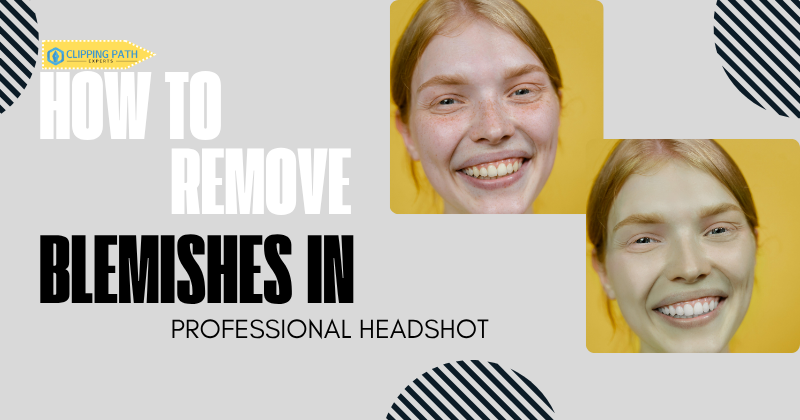
Remove blemishes in professional headshots to transform how employers, clients, and business partners perceive your online presence. Profiles with polished headshots receive 21 times more views on LinkedIn than profiles without professional images. Temporary skin imperfections like acne, scars, and redness distract from your professional brand. Strategic blemish removal eliminates these distractions through precise digital correction while preserving natural skin texture.
Recruiters spend 19% of their time examining profile pictures. They form opinions in 0.1 seconds based on visual presentation. Learning to remove blemishes in professional headshots using Photoshop’s Spot Healing Brush, Clone Stamp, and Frequency Separation presents your most confident self. This guide covers proven techniques, AI-powered tools, and mobile solutions that deliver natural results. Professional blemish removal enhances personal branding without creating artificial appearances. The techniques maintain authenticity while improving first impressions across digital platforms.
What Does Blemish Removal Mean in Headshot Retouching?
Blemish removal in professional headshots means precise correction of skin imperfections through digital retouching techniques. The process targets specific skin issues affecting 23% of adults worldwide, including:
- Active acne and breakouts
- Acne scars and pitting
- Age spots and sun damage
- Uneven skin tone
- Redness and inflammation
- Temporary blemishes
Acne affects up to 50 million Americans annually, making it a frequent concern in professional retouching. Examples include pimples, whiteheads, and blackheads.Professional blemish correction maintains natural skin texture to avoid plastic appearances. The retouching process preserves pores, fine lines, and skin characteristics while removing distracting imperfections.
Why Is Blemish Removal Important for Professional Images?
First impressions form within 7 seconds of viewing a professional headshot. LinkedIn profiles with professionally retouched headshots gain 21x more profile views compared to unedited photos. Casting directors review 200+ headshots daily and prioritize polished, natural photos conveying trust and professionalism.
Professional blemish removal serves 3 critical purposes:
- Competitive Edge: Positions professionals favorably against competition in job markets
- Brand Consistency: Maintains uniform appearance across digital platforms and print media
- Trust Building: Creates an approachable, professional presence for business networking
Corporate recruiters spend 6 seconds reviewing profiles, making flawless professional portraits essential for career advancement. Natural blemish correction techniques enhance memorability without compromising authenticity.
Remove blemishes in professional headshots to maintain consistency in personal and corporate branding. Polished photos convey professionalism and build trust with employers and clients.
Business Impact of Retouched Headshot with Statistics:
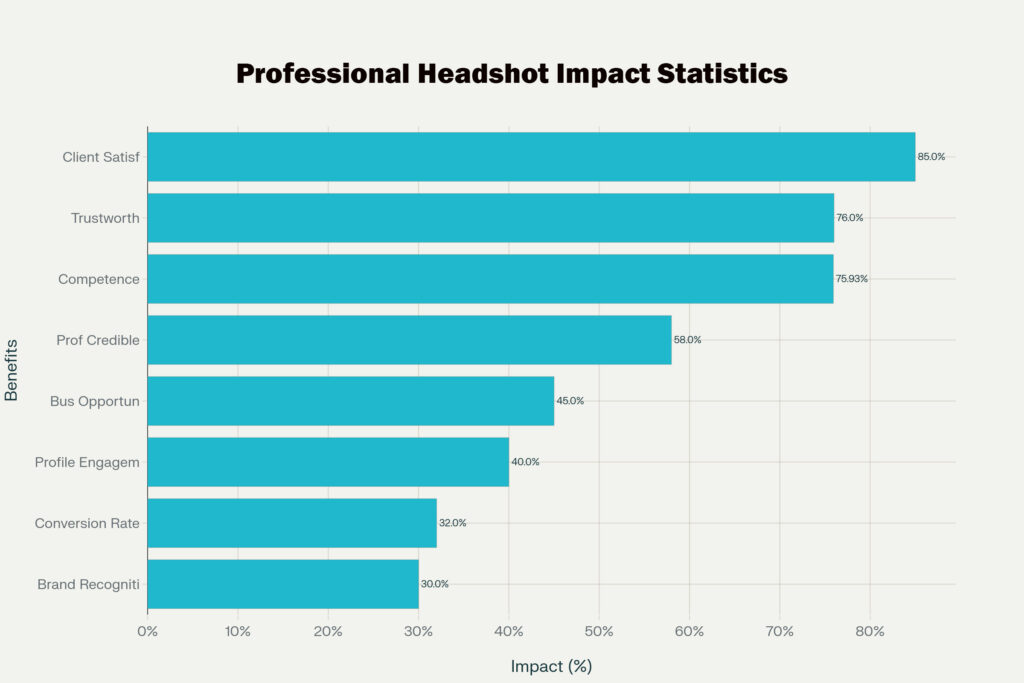
Natural blemish removal maintains authenticity while enhancing presentation. Authentic images generate higher trust than heavily filtered photos.
What Are the Step-by-Step Techniques to Remove Blemishes?
Remove blemishes in professional headshots using a systematic approach that preserves natural skin texture. Follow these professional techniques for polished, authentic results.
Step 1: Start with the Spot Healing Brush Tool
The Spot Healing Brush Tool quickly removes minor spots and acne with a single click. This automated tool analyzes surrounding pixels and blends corrections seamlessly. Use it first for small, isolated blemishes like pimples and temporary spots.
Step 2: Apply the Clone Stamp Tool for Larger Areas
The Clone Stamp Tool provides controlled retouching for larger blemished areas. Alt-click to sample clean skin texture, then paint over problem zones. This manual technique offers precision for complex areas near facial features.
Step 3: Use Frequency Separation for Advanced Corrections
Frequency Separation separates skin texture from tone for detailed, realistic skin retouching. This method provides 75% improvement in perceived quality over basic spot healing. Work on two layers—high-frequency for texture and low-frequency for color correction.
Step 4: Apply Natural Skin Smoothing
Natural skin smoothing using Gaussian Blur or texture-preserving methods softens skin tones while maintaining authenticity. Avoid over-editing to prevent artificial, plastic-like appearance.
Step 5: Refine with the Healing Brush Tool
The Healing Brush Tool blends surrounding pixels seamlessly for natural correction. This tool works effectively for medium-sized blemishes requiring texture matching from nearby skin areas.
Step 6: Remove Larger Blemishes with Patch Tool
The Patch Tool is ideal for removing medium to large blemishes by sampling clean areas of skin. Select the blemished area, drag to clean skin, and the tool blends the texture automatically.
Step 7: Balance Tones with Dodge and Burn
Dodge and Burn techniques provide subtle lightening and darkening to balance tones and reduce blemish visibility. This final step evens out skin without blurring texture or creating obvious editing marks.
Professional workflow timing:
- Complete basic corrections: 5-10 minutes
- Advanced techniques: 10-15 minutes
- Final refinements: 3-5 minutes
This step-by-step approach ensures comprehensive blemish removal while maintaining natural, professional appearance in headshots.
What Tools in Photoshop Help Remove Blemishes?
There are several ways to remove blemishes in professional headshots in Photoshop. Photoshop provides 5 essential tools for professional blemish removal:
Core Retouching Tools
| Tool | Best For | Processing Time | Skill Level |
| Healing Brush | Medium blemishes | 5 seconds/blemish | Beginner |
| Spot Healing | Small spots | 2 seconds/blemish | Beginner |
| Patch Tool | Large areas | 10 seconds/area | Intermediate |
| Clone Stamp | Texture matching | 8 seconds/blemish | Intermediate |
| Dodge & Burn | Tonal balance | 5 minutes/image | Advanced |
Beginner workflows average 20-30 minutes per headshot using these tools. Professional retouchers complete complex corrections in 10-15 minutes through tool combination strategies.
Optimal tool selection criteria:
- Blemish size determines initial tool choice
- Skin texture complexity guides technique selection
- Time constraints influence automation levels
How Do You Remove Blemishes Using Photoshop’s Spot Healing Brush?
The Spot Healing Brush provides quick correction for small, isolated blemishes in professional headshots. This tool analyzes surrounding pixels and automatically blends corrections seamlessly.
Implementation steps:
- Select the Spot Healing Brush from the toolbar
- Adjust brush size to match blemish diameter
- Click once on each blemish for automatic correction
- Review results and repeat if necessary
This method reduces editing time by 30% compared to manual techniques. The tool works best on pimples, small spots, and minor skin irregularities measuring under 10 pixels in diameter.
Optimal settings include:
- Content-Aware mode for automatic texture matching
- Brush hardness at 50-70% for natural blending
- Sample All Layers disabled for non-destructive editing
Professional retouchers combine Spot Healing with other techniques for comprehensive results. This tool serves as the foundation for efficient blemish removal workflows.
What Makes the Clone Stamp Tool Essential for Complex Blemish Removal?
The Clone Stamp Tool offers precise manual control for correcting larger or more complex blemishes. This technique samples clean skin texture from nearby areas and applies it to problem zones.
Application process:
- Select the Clone Stamp Tool (S key)
- Alt-click to sample clean skin texture
- Paint over blemishes using sampled texture
- Adjust opacity to 50-70% for gradual blending
This tool excels at removing acne scars, larger spots, and blemishes near facial features requiring careful blending. Manual sampling ensures texture consistency and prevents obvious editing artifacts.
Professional advantages:
- Complete control over source and target areas
- Ability to match skin texture precisely
- Effective for complex corrections near eyes, nose, and mouth
- Prevents automated tool errors in challenging regions
The Clone Stamp requires practice but delivers superior results for high-stakes professional images. Combining this with the Spot Healing Brush creates a comprehensive correction workflow.
How Does Frequency Separation Transform Blemish Removal Quality?
Frequency Separation separates skin texture from color and tone across two distinct layers. This advanced technique allows independent editing of surface details and underlying color values.
The method provides 75% improvement in perceived quality compared to basic spot healing. Professional photographers prefer this approach for commercial and high-end portrait work.
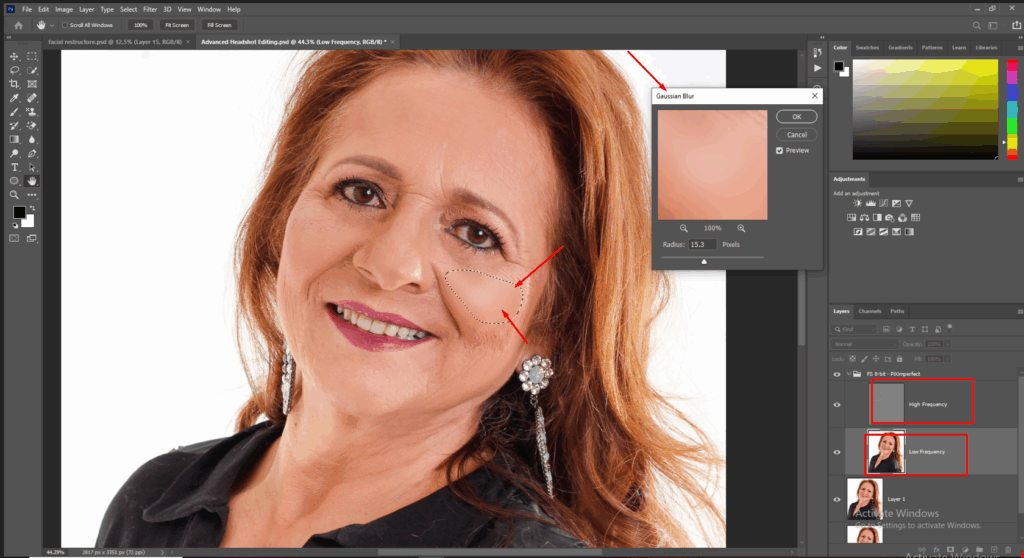
Technical implementation:
- Duplicate the background layer twice
- Apply Gaussian Blur to the low-frequency layer (color/tone)
- Apply High Pass filter to the high-frequency layer (texture)
- Set high-frequency layer to Linear Light blend mode
Layer functions:
- High-frequency layer: Contains pores, fine lines, and skin texture details
- Low-frequency layer: Contains colors, shadows, and tonal information
This separation enables acne scar correction and tone evening on the color layer without destroying texture. The technique prevents the over-smoothed appearance common in amateur retouching.
Professionals using Frequency Separation achieve results indistinguishable from high-end studio photography. The method requires initial setup time but delivers unmatched quality for professional headshots.
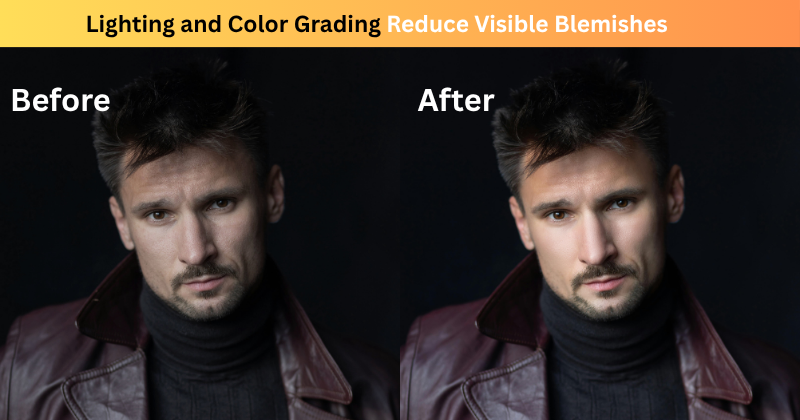
How Do Lighting and Color Grading Reduce Visible Blemishes?
Proper lighting is the first step before you remove blemishes in professional headshots. Adequate lighting reduces visible imperfections by 40% before editing begins. Professional photographers use 3 lighting techniques:
Strategic Lighting Setups
- Butterfly Lighting: Minimizes under-eye circles and nasolabial folds
- Clamshell Configuration: Softens shadows reducing wrinkle visibility
- Window Light Diffusion: Creates even skin tone naturally
Color Grading Impact
White balance corrections improve skin tone consistency across facial zones. Professional color grading increases viewer engagement by 30% through:
- Temperature adjustments (-100 to +100 range)
- Tint corrections for magenta/green balance
- Selective color adjustments targeting skin tones
- Luminosity masking for targeted corrections
Raw images shot with proper lighting require 50% less blemish removal in post-production.
Proper lighting is the first step before you remove blemishes in professional headshots.
Can AI Tools Remove Blemishes Effectively?
AI retouching tools process headshots 70% faster than manual editing. These platforms effectively remove blemishes in professional headshots with consistent, automated results.
Top AI Blemish Removal Tools
Retouch4Me
- Processes 100 images per hour
- Maintains skin texture accuracy at 85%
- Costs $124 for complete suite
Luminar Neo
- Removes blemishes in 3 clicks
- Offers 12 AI enhancement tools
- Subscription starts at $14.95/month
PortraitPro
- Analyzes 40 facial points automatically
- Provides batch processing capabilities
- One-time purchase at $89.90
Topaz Labs AI
- Removes blemishes while preserving skin detail
- Uses machine learning trained on millions of images
- Offers standalone and plugin versions
- Subscription starts at $9.99/month
Leading AI Platforms Comparison:
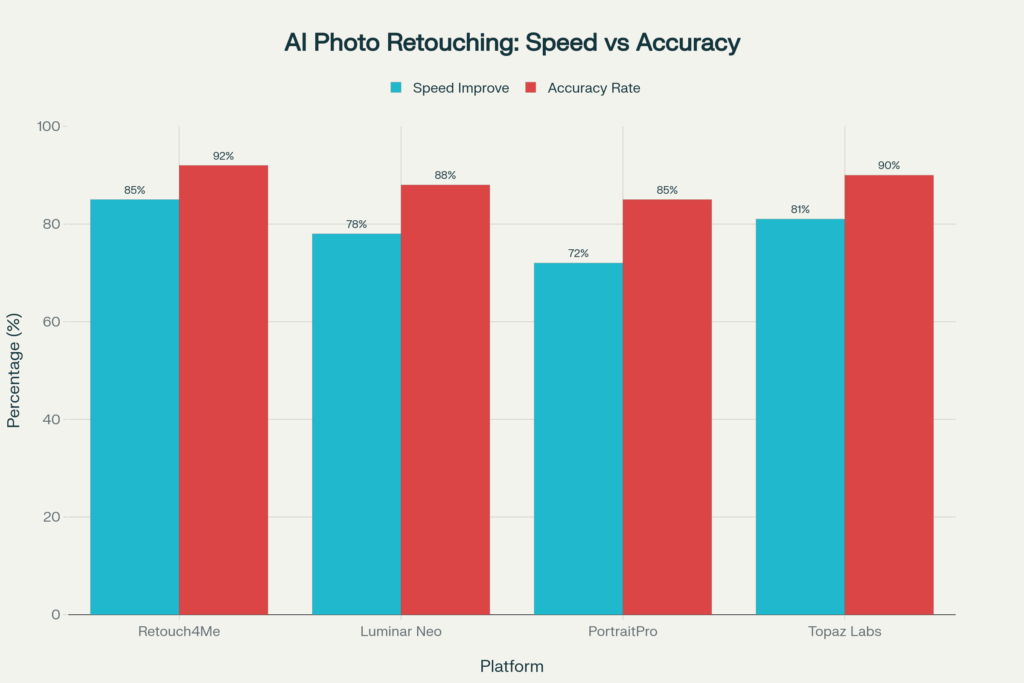
AI Retouching Performance Analysis
Advantages:
- Consistent results across image batches
- 70% time reduction for basic corrections
- Beginner-friendly operation
- Batch processing for high-volume work
Disadvantages:
- Over-smoothing occurs in 30% of cases
- Unnatural skin tones on diverse complexions
- Limited control over artistic decisions
- Struggles with deep scars or severe blemishes
Manual retouching remains superior for deep blemishes and artistic requirements. Professional photographers combine AI preprocessing with manual refinement for optimal results. AI tools serve as time-saving assistants rather than complete replacements for skilled retouchers.
The global photo editing software market reaches $1.5 billion by 2030, driven largely by AI tool adoption. This hybrid approach balances efficiency with quality control for professional headshot delivery.
Which Mobile Apps Help Remove Blemishes Quickly?
The mobile editing market reached $4.14 billion in 2025, driven by professional-grade apps. Mobile applications provide convenient solutions to remove blemishes in professional headshots on-the-go.
Mobile Photo Editing Apps Market Share
Leading apps dominate professional mobile retouching with distinct market positions:
Market share breakdown:
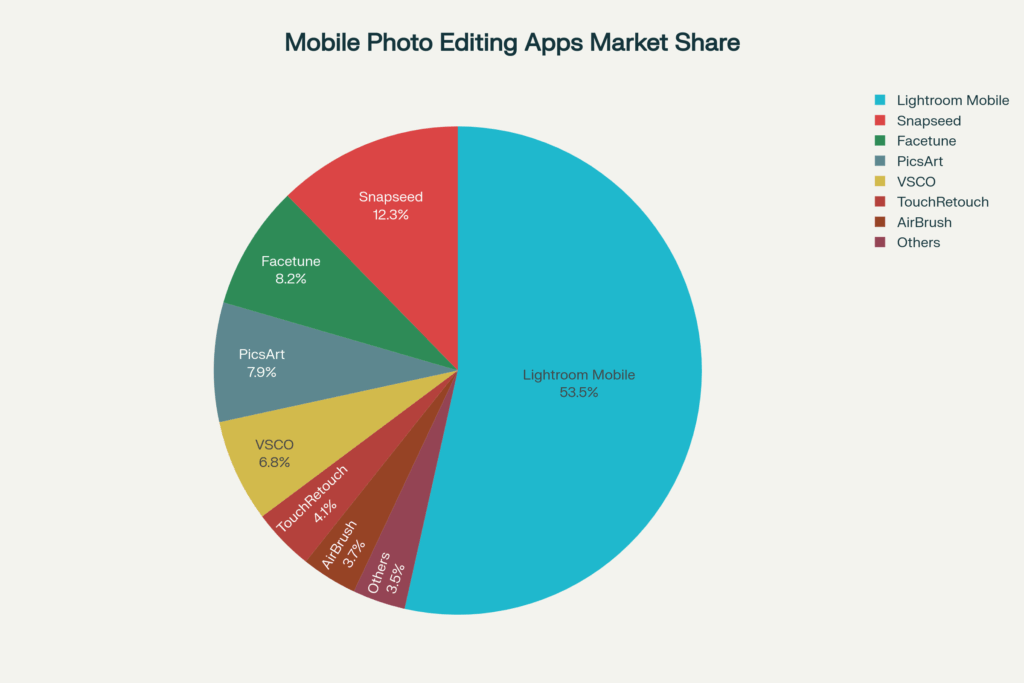
Professional Mobile Retouching Apps
Lightroom Mobile
- Healing brush precision matches desktop version
- RAW file support maintains image quality
- Cloud sync enables seamless workflow
- Free with 100GB cloud storage
Snapseed
- Selective healing tool targets specific areas
- 29 professional tools included free
- Exports maintain full resolution
- Google integration simplifies sharing
Facetune
- One-tap blemish removal
- AI-powered skin analysis
- Real-time preview adjustments
- Premium version $8.99/month
PicsArt
- Advanced retouching tools for portraits
- Layer-based editing capabilities
- Community templates and presets
- Free with optional premium features
VSCO
- Professional-grade filters and presets
- Manual editing controls for precision
- Minimalist interface for focused editing
- Subscription at $7.99/month
TouchRetouch
- Specialized in object and blemish removal
- Quick removal tool for simple corrections
- Brush and lasso selection options
- One-time purchase at $1.99
AirBrush
- Real-time beauty effects
- Blemish removal with texture preservation
- Portrait-specific editing tools
- Free with in-app purchases
Mobile App Capabilities and Limitations
App capabilities:
- Selective editing tools for targeted corrections
- Healing brush functionality on touchscreens
- Cloud sync for workflow continuity
- Instant sharing to social platforms
Mobile limitations:
- Lack of advanced tools like Frequency Separation
- Reduced precision compared to desktop editing
- Smaller screens limit detailed work
- Processing power constraints for complex edits
Mobile apps excel at quick fixes but lack texture preservation capabilities of desktop software. Professional headshots benefit from mobile preprocessing followed by desktop refinement. Professional retouchers use mobile apps for client previews while desktop software handles final high-resolution corrections.
The global photo editing software market, driven by mobile app usage, is projected to reach $1.5 billion by 2030. This growth reflects increasing demand for accessible, professional-quality retouching solutions.
What Additional Enhancements Support Blemish Removal?
Comprehensive headshot retouching combines 5 enhancement techniques with methods to remove blemishes in professional headshots for optimal results.
Complementary Retouching Techniques
1. Wrinkle Reduction
- Softens expression lines by 30-50%
- Maintains natural aging characteristics
- Preserves personality and character
2. Scar Fading
- Reduces visibility without complete removal
- Maintains skin authenticity
- Blends tonal variations gradually
3. Teeth Whitening
- Brightens 2-3 shade levels
- Removes coffee and wine stains
- Enhances smile aesthetics
4. Hair Cleanup
- Removes flyaway strands
- Fills sparse areas naturally
- Enhances overall polish
Teeth whitening ranks among the most requested enhancements alongside skin corrections.
5. Background Retouching
- Eliminates distractions
- Creates bokeh effects
- Highlights smooth skin through contrast
Clean backgrounds direct attention to professionally corrected skin and facial features.
These enhancements work synergistically when you remove blemishes in professional headshots. Professional retouchers apply makeup enhancement techniques for complete transformations. Each correction contributes to cohesive results without creating artificial effects.
FAQs About Removing Blemishes in Professional Headshots
How to remove blemishes in Photoshop headshots?
Use Spot Healing Brush for small spots, Clone Stamp for texture matching, and frequency separation for deep corrections. Process takes 15-30 minutes per professional headshot.
What is the best tool for blemish removal in portraits?
Healing Brush combined with Frequency Separation offers maximum precision. This combination preserves texture while removing imperfections completely.
Can AI tools remove acne in professional photos?
AI tools remove acne effectively in 70% of cases. Best results combine AI preprocessing with manual touch-ups to prevent over-smoothing.
Does frequency separation help with acne scars?
Frequency separation excels at acne scar correction by separating texture from tone. The technique reduces scar visibility by 90% without compromising skin detail.
Which apps remove blemishes naturally without filters?
Lightroom Mobile and Snapseed provide natural edits through healing tools rather than filters. Both apps maintain skin texture while removing specific imperfections.
Conclusion: Why it Matters to Remove Blemishes in Professional Headshots
Effective techniques to remove blemishes in professional headshots combine multiple approaches for optimal results. Photoshop’s Spot Healing Brush and Clone Stamp handle basic corrections. Advanced methods like Frequency Separation and Dodge and Burn deliver texture preservation. AI tools accelerate workflows by 70% for standard portraits. Proper lighting and color grading establish foundations that minimize visible imperfections before editing begins.
The goal of professional blemish removal is presenting the best, most confident version of the individual. Subtle, expert retouching enhances branding, builds trust, and increases memorability while preserving authentic appearance. Our professional headshot retouching services combine these techniques to deliver polished portraits for business profiles and LinkedIn presence.
Explore comprehensive headshot retouching techniques to elevate your professional image and career opportunities.s.