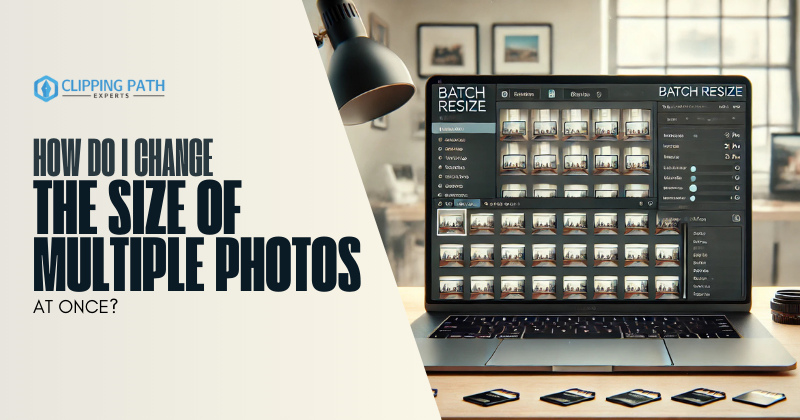
Resizing photos one by one is impractical when working with hundreds of images for social media, websites, or print. Whether you’re a photographer, blogger, or small business owner, Bulk Resizing is a Branch or you can say a category of Bulk Editing. Learning how to change the size of multiple photos at once saves time and ensures consistency.
In this guide, We cover tools, step-by-step methods, and pro tips for bulk resizing without compromising quality.
What Does “Changing the Size of Multiple Photos at Once” Mean?
Bulk resizing involves adjusting the dimensions (width/height) or resolution of multiple images simultaneously. This is critical for:
- Web Optimization: Reduce file sizes for faster page loading.
- Social Media: Meet platform-specific dimensions (e.g., Instagram, Pinterest).
- Print Preparation: Resize images to standard print sizes (e.g., 4×6 inches).
Tools to Change the Size of Multiple Photos at Once
1. Desktop Software
- Adobe Photoshop: Image Processor or Actions for batch resizing.
- Lightroom: Export presets with fixed dimensions.
- GIMP (Free): BIMP plugin for bulk processing.
- FastStone Image Viewer: Lightweight tool for quick resizing.
2. Online Tools
- BulkResizePhotos: Free browser-based tool for resizing and compressing.
- Canva: Magic Resize (Pro) to adapt designs to multiple formats.
- Pixlr: Batch resize images with custom dimensions.
3. Mobile Apps
- Photo & Picture Resizer (Android/iOS): Resize multiple photos on the go.
- Lightroom Mobile: Sync resizing settings across selected images.
How Do I Change the Size of Multiple Photos at Once? Step-by-Step Guides
Method 1: Adobe Photoshop
- Prepare a Folder: Place all photos in one folder (e.g., “Raw_Images”).
- Open Image Processor:
- Go to File > Scripts > Image Processor.
- Configure Settings:
- Select source and destination folders.
- Choose file type (JPEG/PNG) and quality.
- Check Resize to Fit and enter width/height (e.g., 1920px).
- Run: Click Run to resize all images.
Method 2: Lightroom Classic/CC
- Import Photos: Add images to a collection.
- Set Export Preset:
- Go to File > Export.
- Under Image Sizing, check Resize to Fit and set dimensions.
- Save as a preset (e.g., “Web-1920px”).
- Export All: Apply the preset to bulk-resize.
Method 3: Canva Pro
- Upload Photos: Add images to a Canva project.
- Magic Resize:
- Click Resize (top toolbar).
- Enter custom dimensions or choose a template (e.g., Instagram Post).
- Click Copy & Resize to generate versions.
Method 4: GIMP (Free)
Install BIMP Plugin:
- Download BIMP from gimp.org.
- Place the plugin in GIMP’s Plugins folder.
Batch Resize:
- Go to File > Batch Image Manipulation.
- Add photos, select Scale Image, and set dimensions.
Export:
- Save resized images to a new folder.
Unique Workflows for Specific Needs
1. Social Media Graphics
- Task: Resize 50+ images to Instagram’s 1080px width.
- Tool: Lightroom’s Export Preset or Canva’s Magic Resize.
2. E-Commerce Product Images
- Task: Standardize product photos to 1200x1200px for a Shopify store.
- Tool: Photoshop’s Image Processor with Fit to Square settings.
3. Print-Ready Portfolios
- Task: Convert 100+ photos to 300 DPI and 8×10 inches.
- Tool: FastStone Image Viewer’s Batch Convert.
Pro Tips for Bulk Resizing
- Preserve Aspect Ratio: Enable Constrain Proportions to avoid stretching.
- Maintain Quality: Use high-resolution formats (PNG/TIFF) for print.
- Rename Files: Use batch renaming tools to avoid overwriting (e.g., “Image_001_Resized.jpg”).
Common Challenges & Fixes
| Challenge | Solution |
| Distorted Images | Always check Constrain Proportions. |
| Quality Loss | Avoid excessive compression; use 80-90% JPEG quality. |
| Slow Processing | Split large batches into groups of 100. |
FAQs: How Do I Change the Size of Multiple Photos at Once?
1. Can I resize photos without losing quality?
Yes! Use lossless formats (PNG/TIFF) and avoid upscaling beyond the original resolution.
2. What’s the best free tool to resize multiple photos?
BulkResizePhotos (online) or GIMP (desktop).
3. How do I bulk-resize photos on a phone?
Use Photo & Picture Resizer (iOS/Android) or Lightroom Mobile.
4. How to resize images to exact dimensions (e.g., 800x600px)?
In Photoshop, use Image Processor with Resize to Fit > Width & Height.
5. Can I resize and watermark photos at the same time?
Yes! Use Lightroom Export overlays or XnConvert (free desktop tool).
6. Why do my resized photos look blurry?
You’re likely upscaling. Only resize images to smaller dimensions for clarity.
Conclusion
Learning how to change the size of multiple photos at once is essential for anyone managing digital content. With tools like Photoshop, Lightroom, or free alternatives like GIMP, you can standardize image dimensions for web, print, or social media in minutes.
Next Steps:
- Choose a tool that fits your needs.
- Test resizing on 5-10 photos.
- Scale up and enjoy your newfound efficiency!